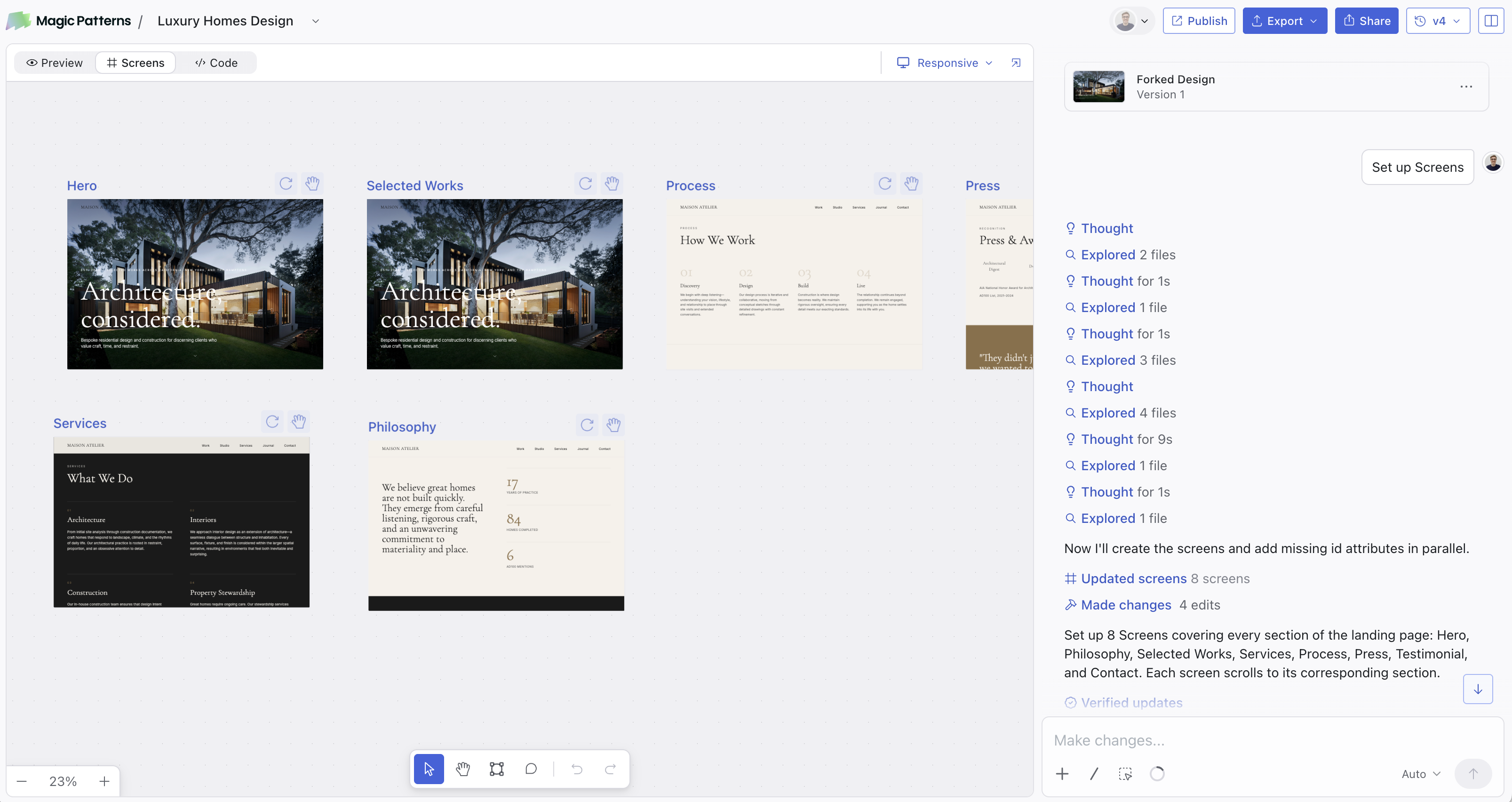
Features to Help You Troubleshoot
Retry and Fix with AI do not consume any credits.
Retry
If you didn’t like what the AI generated, you can click the Retry button to have it try the same prompt again. Retrying a prompt does not consume any new credits.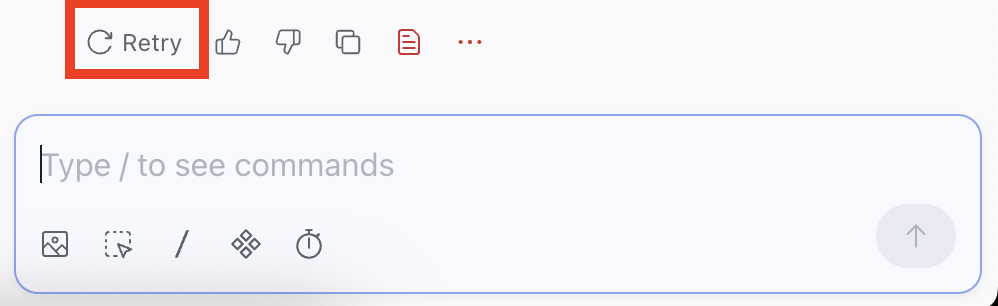
Fix with AI
If you’re experiencing an issue with your design in Magic Patterns, you can use the Fix with AI feature. This tool helps resolve problems automatically and does not consume any credits.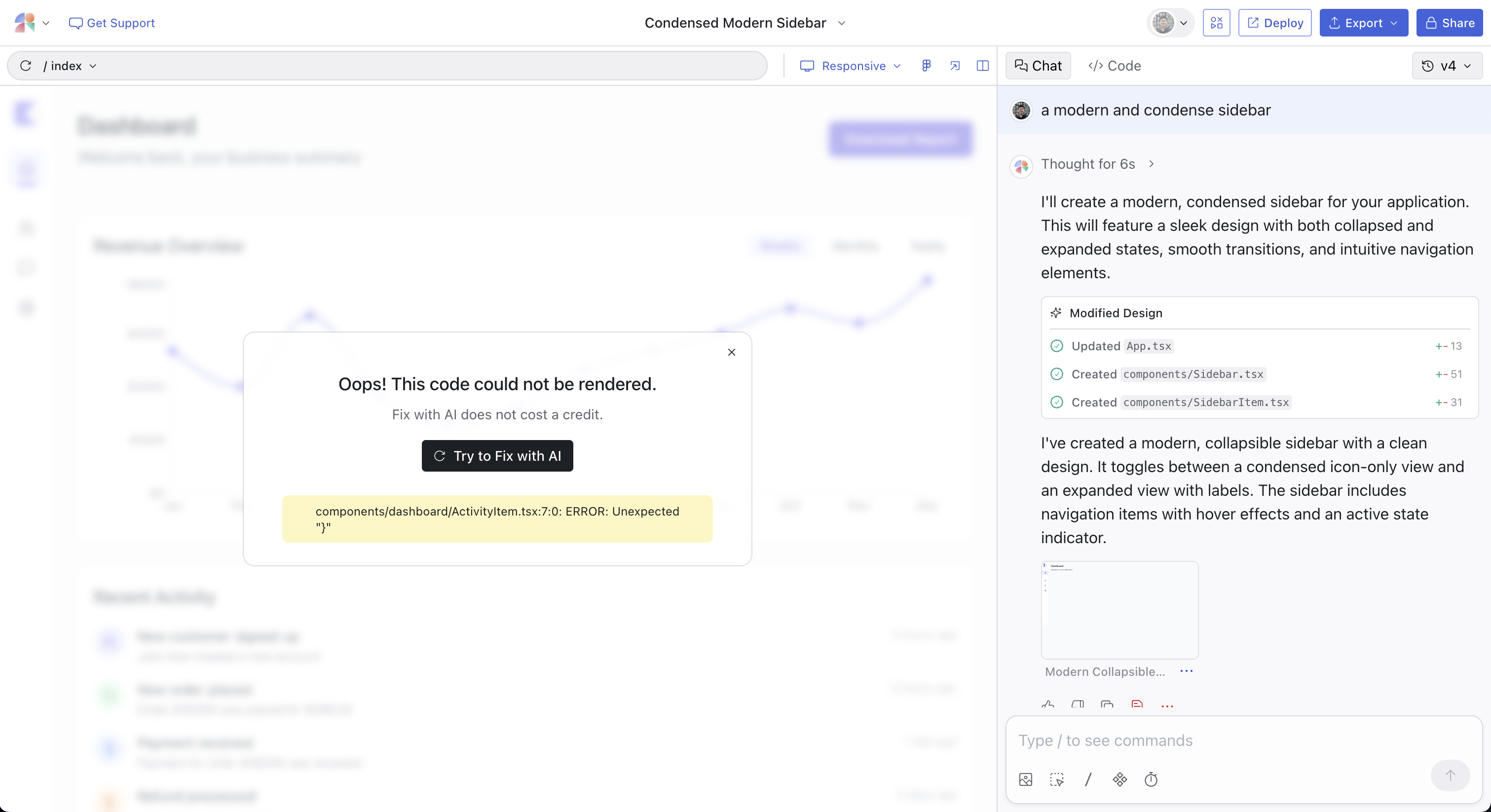
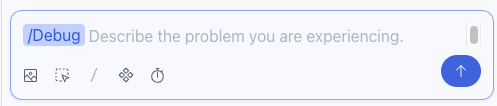
/Debug Skill
When you’re stuck in a situation where the AI isn’t following your instructions correctly, try using the /Debug skill in the chat. It plugs in a well-crafted prompt template along with your description of the issue that helps guide the AI toward debugging the issue effectively.
Common Issues
”I Don’t See My Changes”
Background
The AI likely did make the change you asked for, but:- It’s not “hooked up” (e.g., created a new page but didn’t link a button to it)
- It’s on a different page/route than you’re looking at
- The element exists but isn’t visible (hidden, off-screen, or in a different state)
Solution
Ask the AI to reflect on why you’re not seeing the changes:Prompt
- “I created a new
/settingsroute, but you need to click the gear icon to navigate there” - “I added the feature to the mobile view, but you’re looking at desktop”
- “I created a modal, but it only shows when you click the ‘View Details’ button”
Prevention Tips
-
Be explicit about where changes should appear:
- Bad prompt: “Add a settings page”
- Good prompt: “Add a /settings route and make the gear icon in the header link to it”
-
Use Select Mode to reference specific elements:
- Click the button that should trigger the change
- Then prompt: “When I click X, ensure that it actually goes to [XYZ].”
-
Ask the AI to confirm:
- Add to your prompt: “…and make sure it’s visible on [XYZ]"
"I never see Fix with AI""
Background
If Fix with AI isn’t appearing in your project, it’s likely because your app is wrapped in a special thing called anErrorBoundary. In frameworks like React, an ErrorBoundary catches errors and displays fallback UI. While useful for production, this behavior prevents unhandled exceptions from surfacing, which means the system doesn’t recognize an error and won’t trigger Fix with AI.
Solution
Remove or disable your error boundary by prompting the assistant to automatically make the change:Prompt
Prevention Tips
- Avoid wrapping your entire app in an
ErrorBoundarywhile prototyping - If you need error handling, consider prompting the AI to add it only to specific components rather than the “entire App"
"I have to click A LOT every time to navigate through my screens”
Background
If you have a flow of many screens, you don’t need to click through from the start every time. Screens shows every page of your design in a single bird’s-eye view, and you can prompt against any of them directly.Solution
Open the Screens tab at the top of your design. See Screens for details.